Reservations:
A reservation is an absolute guarantee of memory or CPU for a virtual machine or a resource pool. Reservation assignments are measured in specific Megabytes (MB) of memory or Gigahertz (Ghz) of CPU. When are Reservations relevant? When you must provide an absolute minimum guarantee of resources for a particular application to run (or run well).Example:64 GB of RAM available on a host
VM1: 11 GB Reservation
VM2: 13 GB Reservation
Remaining: 40 GB for all other VMs
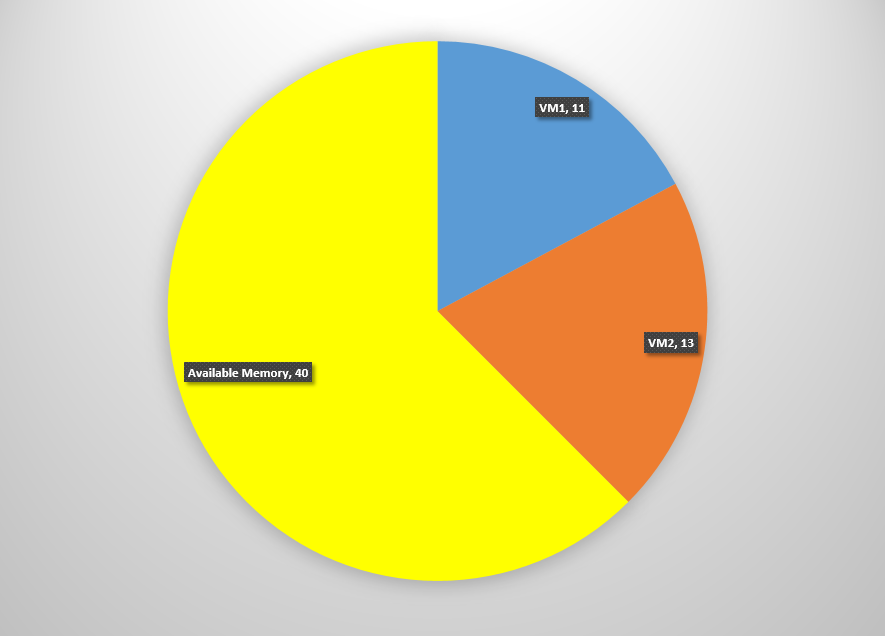 |
| Carving out resources with Reservations |
Remember that the reservation is separate from the RAM assignment of the VM. For Example, VM1 might have an assignment of 15 GB of Memory but is Reserved 11 GB. Therefore 4 GB may be allocated from VMware physical RAM or failover to swapfile capabilities. If VM2 has a 15GB assignment in addition to the 15 GB reservation then 100% of its memory is guaranteed to be allocated from physical RAM.
 |
| Memory Reservation |
 |
| CPU Reservation |
Shares:
A Share are a proportional weighted assignment of memory or CPU processing power. Shares are relative resource assignment measured by a number of shares of Memory or CPU. Think of it like shares of stock in a company. The more shares there are, the less yours are worth in voting power.Administrators will assign top tier applications (e.g.: Database Server) more shares than lower tier applications (e.g.: FTP Server) When do shares become relevant? When you OVER-ALLOCATE resources and must balance requests for resources among several VMs.
There are 4 share settings-
- High = 2000 shares per vCPU and/or 20 shares per MB of configured memory
- Normal = 1000 shares per vCPU and/or 10 shares per MB of configured memory
- Low = 500 shares per vCPU and/or 5 shares per MB of configured memory
- Custom = configure the numeric allocation of shares for CPU or memory
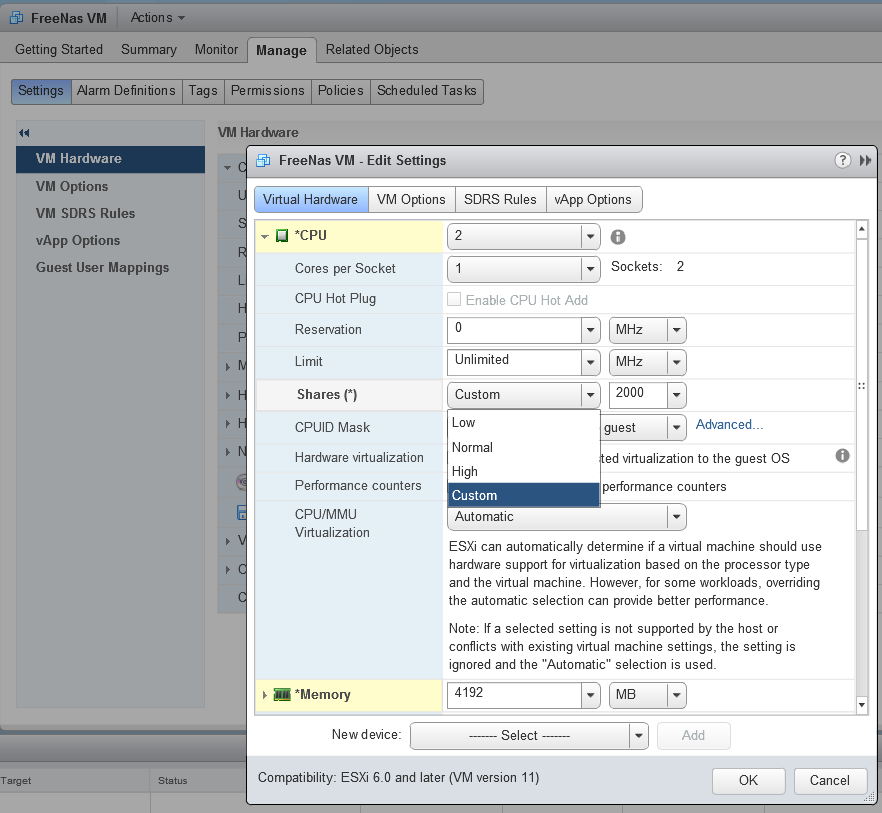 |
| CPU Share configuration |
 |
| Memory Share Configuration |
If both VMs have the evely distributed default share assignment of 1000, the two systems will have 50%/50% access to the vCPU.
 |
| CPU allocation under contention will be equal between VM1 and VM2 |
However, if VM1 has a is normal (1000) allocation but VM2 and another has a custom allocation of 3000 shares then when under contention VM1 will have 1000/4000 (25%) access to the resources and the other VM has 3000/4000 (75%) access to the processor.
 |
| CPU allocation under contention is now tipped to give VM2 more CPU cycles |
Limits:
Limits are a way to prevent a VM from using available memory or CPU. It should only be used in testing and development, since it is designed to cripple a VM's performance. |
| CPU Limit |
Resource Pools:
Resource Pools allow you to create a shared container that defines the Reservations, Shares, and Limits that apply to the group of all VMs within it. This is NOT an inheritance setting, but a (as the name implies) pool of defined resource allocation for the benefit of all who are within it.For example, if a regular reservation is like carving out an office on an unpartitioned floor of a building, a Resource Pool allocation lets you carve out an office that will be shared by more than one employee.
Example:
Example:64 GB of RAM available on a host
VM1: 11 GB Reservation
VM2: 13 GB Reservation
Resource Pool (parallel to top level VMs) : 20 GB Reservation
Remaining: 20 GB for all other VMs
 |
| Reservations with Resource Pool |
How about if we use Resource pools in conjunction with Shares? The proportion of resources are allocated among the top tier items, whether they are VMs or Resource Pools. Then within a resource pool you provide the means of allocating the portions within.
This would look something like this:
 |
| Shares with Resource Pools |
Example:
Two resource Pools are built, each with two VMs. Share allocations are as follows:
- RP1: 1000
- VM1: 1000
- VM2: 3000
- RP2: 3000
- VM3: 1000
- VM4: 3000
So what percentage of CPU resources when the system is under stress would be allocated to the VMs?
- RP1: 1000 (25% of overall CPU)
- VM1: 1000 (25% of the 25%)
- VM2: 3000 (75% of the 25%)
- RP2: 3000 (75% of overall CPU)
- VM3: 1000 (50% of the 75%)
- VM4: 1000 (50% of the 75%)
- RP1: 2.5 Ghz (25% of CPU)
- VM1: .625 Ghz (25% of the 25%)
- VM2: 1.875 Ghz (75% of the 25%)
- RP2: 7.5 Ghz (75% of overall CPU)
- VM3: 3.75 Ghz (50% of the 75%)
- VM4: 3.75 Ghz (50% of the 75%)
Just to throw another twist for you, you can nest Resource Pools - though practically you shouldn't more than a few layers deep. The principle stays the same - Your reservations will create carved out absolute allocations, your shares will load balance contended-for resources within that container relative to others, and limits will define the maximum amount of resources available.
Let me know if you have any questions. Hope this helps!


