Showing posts with label Active Directory. Show all posts

Thursday, April 21, 2016

Customizing your Mouse Cursor Using Group Policy Preferences

When helping the young, the old, or the visually impaired, it may be important to make sure that your users start off with a larger cursor. In an Windows Active Directory environment this can be done using Group Policy, but in the past required configuration of the registry using some sort of logon script. Many scripts can now be replaced by the use of Group Policy Preferences, which makes the whole process much easier!

You can watch me set this up step by step on video here: https://youtu.be/WjdKPtog5QY

Or here's how to do it step by step:


1) Configure your mouse cursor settings using the control panel on a test machine

We're going to suck these settings out of the test machine and into Group Policy Preferences!

2) Open the Group Policy Management Console on a domain controller or a workstation where the RSAT tools for AD have been installed and create or edit a Group Policy is linked to the right OU to affect the desired users (or link it to the domain to affect all users)
Remember to link your GPO to the right node in AD

3) Navigate to the User -> Preferences Section -> Windows Settings -> Registry
Cursors are user settings, and there are no administrative templates in policy to configure this for us - so we go to GPO preferences!

4) Right Click and choose Registry Wizard
Registry Item = one setting by hand, Registry Wizard is a vacuum cleaner for preconfigured settings!

5) Select Local if you modified the Mouse Cursor settings on the local machine or choose the remote machine that you want to connect to (firewall settings must allow this)
Select the machine that has already been configured as your template

6) Expand HKey_Current_User Tree ->_ Expand the Control Panel Key -> Expand the Cursors Key
This is the tricky part - you have to know where to go in the registry!

7) Select all of the Values in the lower half and click Finish
Select all of the named values at the bottom to capture all cursor settings


8) You can expand out the registry key directory and see the key settings.

Each registry item is its own setting - and you didn't have to manually configure any of them!


9) These Group Policy Preference settings do not prevent users from changing their cursor, but it does reapply the registry settings at each logon - unless you tell it not to. To do that, open the properties of each setting and switch to the "common" tab and add the check mark to "Apply once and do not reapply"
GPO Preference Setting Dialog Box to change "stickiness"

10) Log off and log back on as an affected user to experience the new setting!


Original Size


Log Off

Log On - and notice the GPO Preference being applied!


Big fat juicy cursor, just they way I like it!
So... that's how you get your funky mouse cursor settings into Group Policy Preferences... but be creative! What other registry settings are tied to users or computers that you currently have to bake into an image (which get corrupted) or have to manually configure? Take advantage of this easy to use tool!

Remember, it's your job to "point" the way!


Monday, April 13, 2015

Safely Restarting Active Directory

The restartable AD DS service is available in Windows Server 2008 and 2012 as an alternative to rebooting into the Directory Services Restore Mode (DSRM) safe mode in order to apply updates and fully defragment or move the database files. Simply put - Active Directory Domain Services is not a server that can be started and stopped via the Services MMC or PowerShell.

Warnings!
  • This means that without rebooting you might disable AD related services such as DNS AD-Integrated Zones, FRS, or Inter-site Messaging on that server. This is why it is so important to have a Department of Redundancy Department to ensure fault tolerance in your network!
  • You cannot run DCPROMO when stopped except with /ForceRemoval

Benefits:
  • Maintenance is speedier without the reboot
  • Other non-ad related services on the server can still function to support clients
  • Domain Admins can still log on to the domain controller (via another online DC) even when the local AD DS service is stopped
  • You can log on as the DSRM Safe Mode administrator, but only if you have set the registry to allow this behavior ahead of time: HKLM\System\CurrentControlSet\Control\Lsa\DSRMAdminLogonBehavior set to 1
  • Administrators can mark items for an authoritative restore
  • You cannot perform a system restore while the AD DS service is stopped. The system restore operation must always be executed from DSRM mode.
  • Stopping the Active Directory Domain Service will impact the ability to authenticate domain clients and Active Directory applications.
I like to stop the service (and dependencies) nicely with PowerShell:
$ntdsdep = get-service ntds -dependentServices
stop-service $ntdsdep
stop-service ntds

and of course to start it...
$ntdsdep = get-service ntds -dependentServices
start-service $ntdsdep
start-service ntds

Let me know if you have any questions. Hope this helps!

Tuesday, April 15, 2014

Changing default permissions to active directory objects via the Schema

Maybe you want your delegated admin or help desk team to have the ability to manage user account objects throughout active directory, but you don’t want to make them members of the domain admins group. You could delegate authority to this group at a domain or ou level. Likewise you may want certain groups to be able to manage all group policies without having to give them special permissions, or, again, without making them domain administrators. Again, you could use the delegation of control wizard or security tab to set permissions that will be inherited by all objects of this type at the domain or OU level. Or…
You could do what Microsoft has already done, and assign default permissions to objects based upon their schema class type. These default permissions can be easily removed without breaking inheritance, which can be a better model for some administrators. One word of warning: these changes are made forest-wide – so all the domains will be creating objects with these permissions in place. In a multi-domain environment this could be just what you wanted (central management) or absolutely the wrong thing (cross-domain security breach). If it’s just too widespread, you’ll need to use active directory delegation tools instead of default permissions.

To do this, you will need to be logged in as a member of the schema administrators group, a group that by default has only the default administrator account as a member.

Note that being a member of the Enterprise administrators group member is not the same thing as being a Schema Admins group member.
  •  Enterprise Admins = Configuration (Sites/Trusts/New Domains) and Domain Directory partitions (Users/OUs/Computers)
  •  Schema Admins = The Schema partition of Active Directory that defines objects and attributes and default permissions
After installing the administrative tools (download RSAT), you will have all the default active directory tools on your desktop, but no tool for schema.
First you will need to register the schema management console from the cmd or runline using: regsvr32 schmmgmt.dll


You will need to create a new MMC console (go to the start or run line, type mmc, and press enter) and then add the Schema snap-in (file to add/remove snap-in, click add, choose Active Directory Schema).
 

Then you will need to open the classes object and find the object class you are looking for. Users are easy (it’s called users) and Group Policy Objects are too (They are called groupPolicyContainers). In the properties for the object, there is a default security tab which you can use to set the default permissions for new objects based upon this schema class. In the following example I have added Help Desk to the default permissions group for Group Policy Containers.


Warning: you won’t see the change until

  1. You restart the Netlogon service
  2. This has replicated to all the domain controllers in your forest. 
     
You can make these permissions apply to existing objects by going to the security tab of an AD object, going to advanced, and clicking default, which will set the local permissions to the schema default values. In the following example you can see how in the properties of a group policy after I click Restore Defaults you can see the help desk group added to the permissions list.

Good Luck!!!

Using LDAP Saved Queries for Active Directory

In Active Directory, if you have more than one account in the same container, you can mass select them by CTRL+Clicking or SHIFT+Clicking them.  Once selected as a collection (I will refrain from using the term "group" in order to avoid "confusion"), you can enable or disable them, move them into a group, or modify many of their properties at the same time.  And yes, sometimes I do the same thing with scripts in PowerShell.
The challenge in using this ability in the GUI comes when the users that you want to manage live in different OUs, which prevents them from being selected simultaneously.   But fear not!  You can flatten the OU structure of an Active Directory domain in order to find and manage related accounts quickly by using Saved Queries!  Saved Queries will also allow you to find accounts based upon properties in a way that would otherwise be vastly time consuming.

Saved Queries are found in the Active Directory Users and Computers console.  Right click on saved queries, and create a new query. 

 Give your query a useful name, determine if you will limit the scope to less than the domain (perhaps an OU?) and then click "define query".

Now you can see that anything you can find with Active Directory Find can be found and saved here. Choose "custom search" from the drop down of options at the top.
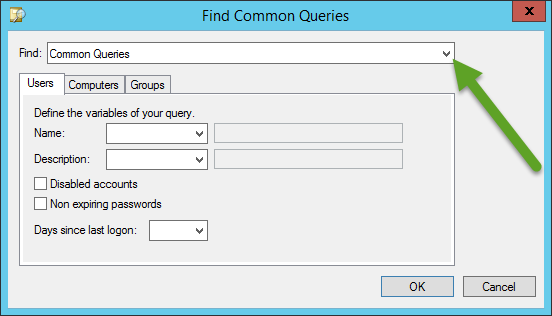
Then go to the advanced tab, you will be presented with a blank LDAP query field.  This is where you will enter your queries.

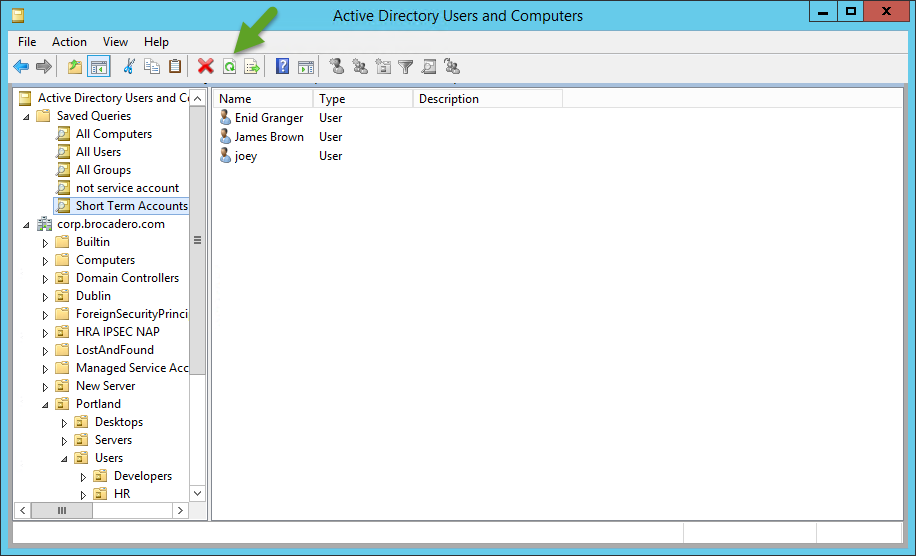
 After clicking OK and OK, you can see your result set. You may need to click Refresh to see up to date information


 I will now present several queries for your benefit, and explain what they do.
All Users Query: (objectCategory=person)(objectClass=user)
This query is a simple tool that allows you to have a logical search container that finds every user, no matter what OU they are hiding in.  Now you can seek, search, and sort to your hearts content within this structure.

Where's Bob Query: (objectCategory=person)(objectClass=user)(name=Bob)
This query finds any user named Bob, no matter where he is hiding.  I would just use the common query tool rather than the custom query to find him, but I want you to see the syntax in order to make sense of the next query...

Standard Users Query: (objectCategory=person)(objectClass=user)(!name=SUPPORT_388945a0)(name=*)(!name=Guest)(!name=Administrator)(!name=Krbtgt)
So, sometimes what is important is what you DON'T want to see!  Where (name=Bob) found the account we wanted, (!name=Administrator) indicates what we want to be filtered out.  The exclamation point acts as the boolean operator "NOT" in this query.

Disabled Users - (objectCategory=person)(objectClass=user)(userAccountControl:1.2.840.113556.1.4.803:=2)
This query finds all disabled users by their userAccountControl value.  Again, this one would be easy enough to do with a common query, where it is just a checkbox to find these accounts.  In fact, that is exactly what I did to create this query.  But on the main query page (before the editor), you can see the LDAP query that the common query created.  Again, I can use this to look for something that is NOT a common query...

NOT Disabled Users - (objectCategory=person)(objectClass=user)(!UserAccountControl:1.2.840.113556.1.4.803:=2)
Once again, the exclamation point before the setting makes it invert the selection, now finding all accounts that have not been disabled.  Remember that first query that flattened all the users?  Many organizations disable accounts instead of deleting them when people leave the company.  That means that with the first query you would find tons of old user accounts.  This query eliminates them from the display.

Locked Out Accounts - (ObjectCategory=Person)(ObjectClass=User)(LockoutTime>=1)
Finding accounts that are locked out so that they can be unlocked and have their password reset is a common issue.  Now, instead of trying to find the locked out account (which has no distinguishing icon, unlike disabled accounts), you can have Active Directory Users and Computers find it for you!

Only Temporary Accounts that will Expire - (objectCategory=person)(objectClass=user)(!accountexpires=9223372036854775807)(!accountexpires=0)
When an user account is created for a contract worker or temp worker, they are often given user expiration dates.  Default accounts will either have 0 or that huge number you see above as their value.  Again, this query dives in, finds the temp accounts in any region or department they may be located in, and brings them to the surface, perhaps so that you can reset their expiration date to something later, or delete or disable their account early.

All Computers - (objectCategory=computer)
You guessed it.  This finds all computers, no matter where they might be hiding in your AD structure.
Used Computer Accounts - (&(sAMAccountType=805306369)(objectCategory=computer)(operatingSystem=*))
When a computer joins the domain, it populates it's own operating system field. This query uses the "*" as a wildcard character, which will find ALL operating systems, meaning that the field can be anything... except blank.

Prestaged Computer Accounts - (&(sAMAccountType=805306369)(objectCategory=computer)(!operatingSystem=*))
When a computer joins the domain, it populates it's own operating system field.  Therefore, by searching for all users accounts where the operating system is NOT filled with anything, you can find prestaged computer accounts that are set up ahead of time by administrators to support future clients.
 You can learn a lot by using the basic queries and backsolving - even when you use a basic query the first properties sheet (before you go into define query) displays the LDAP query!


You can also find out a great deal by configuring accounts differently and then viewing their properties in adsiedit.msc or in the advanced view ADUC properties tab.


One last note about saved queries.  Once you create them, they are saved with the console, NOT in Active Directory.  That means other users will not be able to see them.  Even you won't be able to see them if you open a different MMC console!  Fortunately, you can right click and export them as XML files, and import them into any other MMC where needed.  You may wish to export them and have them available on a network drive... just in case.

Good luck, and let me know if there are any saved queries that you would like to figure out!

Friday, April 4, 2014

Configuring DNS to support multiple Active Directory Domains


Imagine you have two secure Active Directory domains that need to trust each other. Trust presupposes DNS discovery, and that requires finding the authoritative server for that namespace. For AD domains, there are rarely internet facing DNS servers that are storing the domain controller A and SRV records needed. That means that unlike a local server resolving majorbacon.blogspot.com, you won't be able to use root hints or an ISP as a forwarder. This situation shows up in many MCSA and MCSE exams and is an important configuration step for any Enterprise admin. I call this the "two tree problem"

For example: earthfarm.local and corp.brocadero.com

You have 4 basic options:

  1. Have each DNS server hold a secondary zone of the other domain’s primary zone
  2. Have each DNS server conditionally forward to the other domain’s DNS server
  3. Have each DNS server hold a stub zone of the other domain’s primary zone
  4. If both domains are in the same forest, allow AD-replication of both zones on either the ForestDNS partition or a custom DNS partition.

Method
Pros
Cons
Trade secondaries
  • Complete answer available at the local DNS server.  Fast response time for client queries.
  • Requires allowing zone transfers on Master server.
  • Uses bandwidth for zone transfer
 
Conditionally forward to each other
  • Simple configuration. 
  • Does not require allowing zone transfers on Master server.
  • Uses network bandwidth only on first lookup, then caches.
  • Cannot react to changes in the DNS infrastructure (New DNS servers on other side or old DNS servers removed)
Trade stub zones
  • Can react to changes in the DNS infrastructure (New DNS servers on other side or old DNS servers removed)
  • Does not require allowing zone transfers on Master server.
  • Uses network bandwidth for limited queries to discover SOA, NS, and Glue A records, then all other resource records involve network traffic only on first lookup, then caches.
  • More complex to configure than Conditional Forwarders.
  • Many administrators are unfamiliar with this tool.
AD-Replication
  • Complete answer available at the local DNS server.  Fast response time for client queries.
  • Secure Storage
  • Secure Siteaware Replication
  • Requires membership in the same AD forest
  • Uses bandwidth and could over-replicate if not configured to use the correct partition on a large multi-domain network.

 
It should be noted that of course combinations of these options are possible where it makes sense. For example, if my domain uses your domain's resources frequently, but not the other way around, it might make sense to use AD-replication (if we are in the same forest) of your domain, but you use conditional forwarding to discover the occasional records you need from my domain.

Friday, March 28, 2014

Kerberos and the Clock

Time is ticking away. Tick tick ticking away...
Time keeps on slipping, slipping, slipping... into the future...

Enough song references. Windows 8, like Windows 7, Vista, XP, and 2000 before it, is a tool that takes its clock very seriously. What is it that all of these operating systems have in common? The ability to join an active directory domain that is secured by Kerberos, the authentication protocol named for the mythical 3-headed dog of the underworld that guards the gates to hell. This is something to take seriously.

Here is the quick picture of Kerberos from Microsoft's web site (http://technet.microsoft.com/en-us/library/bb742516.aspx)


The essential element to get here is that after identifying herself as Sue (name & password, smart card, etc) to the Authentication Service (an Active Directory Domain Controller) the Ticket Granting Service (which is also the Active Directory Domain Controller) provides a Ticket Granting Ticket (TGT) that will be used by Sue automatically to request access for any services. Access to each service is granted by way of a Service Ticket (ST) that is issued on demand as we try and use each service, whether it be the local workstation or a remote server.
Each Service Ticket will have a time stamp based upon when the ticket was issued. When a service receives a service ticket from the client signed by the Ticket Granting Service, not only does it verify the digital signature of the service, it also checks the time stamp to ensure that the ticket is no more than 5 minutes more or less than the current local system clock. This helps to prevent an occurrence of a replay attack. If there is too much "time skew" the service will deny the access attempt.

Remember this begins with the local logon service!

So we need to have the correct time on all of our clients and servers when in a domain environment. This is why there is a user right to change the system time that is NOT granted to standard users, but only to local administrators. This is to prevent Joe User from setting their clock ten minutes fast (to ensure they don't miss their meetings), only to be blindsided and unable to logon! But in many cases users are made members of the local Administrators group, which then allows for localized changes to time.

That's why there is a local service at work on the client to keep the clocks synchronized. The name of this service is w32time or "Windows Time". This service is based upon the use of a protocol called Simple Network Time Protocol or (SNTP) that operates on UDP port 123. In previous versions of Windows the command-line way to manage this tool was through the NET TIME /SetSNTP command. In Windows 8 if you issue this command you will receive the message "The /QUERYSNTP and /SETSNTP options have been deprecated. Please use w32tm.exe to configure the Windows Time Service." So off we go to the new and improved time sync utility!
W32tm will need to be run in an administrative command prompt. To discover your current configuration use the command
w32tm /query /configuration /verbose
Here is sample output from a domain environment:
?
By default your TYPE value in a domain will be NT5DS. This means the local machine will use an NT5 (Windows 2000) or later DS (Directory Service domain controller) to sync your time. The first domain controller in the domain is tagged as the default "PDC emulator." This means that in addition to standard authentication procedures, this DC has extra responsibilities, including being the focal point for all time synchronizations in the domain! Clients can find the PDC emulator automatically through a DNS lookup.
However, having all clients point to the PDC emulator may not make sense if you have a geographically distributed environment. So you can point to one or more time servers manually to override this default behavior. By default all Windows 8 clients and Windows 2012 servers are listening for SNTP requests on port 123 (Though you may have to make an exception in the Windows firewall to allow access)
To change your configuration to point to a specific machine use the command
w32tm /config /ManualPeerList:" ?" /SyncFromFlags:Manual
/ManualPeerList defines the space-separated list of SNTP servers to use (That's why we have to put them in quotes if we have more than one)
/SyncFromFlags indicates that instead of using Active Directory we want to use our own list of SNTP servers.
Having done so, if we run the w32tm /query /configuration /verbose command again we see the following:
?
As you can see, we are now set to use NTP - which will only use our manually specified time servers.
Our earlier command of w32tm /config /SyncFromFlags can be used with 4 different configurations which will display with the w32tm /query /configuration command as 4 different "Types."
/SyncFromFlags: Value
?
?
?
/Query /Configuration Type Result
?
?
?
Effect
?
?
?
Manual
?
?
?
NTP
?
?
?
Sets system to use servers specified in the /ManualPeerList configuration
?
?
?
DomHeir
?
?
?
NT5DS
?
?
?
Sets system to use the PDC emulator
?
?
?
All
?
?
?
AllSync
?
?
?
Attempts to use the PDC emulator, but then fails over to your manually specified time servers
?
?
?
No
?
?
?
NoSync
?
?
?
Disables using NTP at all, even though the service is started
?
?
?
Of course, you have active directory... what are you doing at the command line? Go make a group policy!
Configure Windows NTP Client. As you can see, once you get there it is pretty straight-forward.
 

When Restricted Groups Attack


So there you are, using Group Policy in Microsoft Active Directory to manage an armada of computer systems both near and far. You think to yourself, "Self, I should really be managing the membership of important groups like Administrators and Backup Operators more efficiently through group policy! After all, I've controlled the user's passwords, defined their screensavers, configured their browsers, mapped their drives, and installed software to install on demand!" Well right you are, but there is a catch...

Let's say you wanted to manage the membership of 500 desktops in the "Majorbacon" domain so that members of the group "Majorbacon\HelpDesk" were members of each computer's local group "Administrators."

You can do this by adding the restricted group "Administrators" and then adding "Majorbacon\HelpDesk" to the Members tab, as shown:


Now this seems good, but take a  look at the before and after screenshots of a computer affected by this policy!

PRE-policy:
 

After running GPUPDATE on the client, here is the POST-policy:


The problem is, when you define the membership list of a group, you define the ONLY members of that group. Therefore, all the other members, SUCH AS DOMAIN ADMINS, have been removed. I'm pretty sure that in most administrative circles, this would be called "bad."

So here is the other option, which is probably the one you want.
 
You should add the restricted group "Majorbacon\HelpDesk", and then add "Administrators" to the "Member Of" tab, thereby saying that HelpDesk should be a member of the local Administrators group (but NOT saying that other's couldn't also be members as well).

You are now only a GPUPDATE away from nirvana. Let's look at the group after the local computer has been updated by this policy.


So what have we learned? There are two methods to manage local group membership.

The first method: If you want to totally ABSOLUTELY DEFINE a local group membership list, define the local group as a restricted group and configure the active directory global groups in its "members of this group"  list.

The second method: If you want to SUPPLEMENT a local group membership list, define the Active Directory group you want to nest, and add the local group to the "This group is a member of" list.

One final thought: Any local administrator CAN actually change the membership in Local Users and Groups, but since security policies are essentially reapplied with a "/Force" command every 16 hours (see http://technet.microsoft.com/fr-fr/library/cc785822(WS.10).aspx if you don't believe me), those changes will be either set back to group policy standard (if you used the first method) or lost Active Directory groups will be restored (if you used the second method)