Showing posts with label VMware. Show all posts

Friday, December 18, 2015

The ultimate guide to virtualization swap files!

Most operating systems natively support RAM over-extension. This is accomplished by using a temporary file on the hard drive to store RAM blocks that are not currently being actively processed so that more RAM is available for blocks that do need current processing. This file is called a swapfile or a pagefile depending on the OS. This is never a good thing, because disk is always slower than Ram speed (don't believe me? click here) But it is sometimes a necessary thing.

Managing Swapfiles and Pagefiles can be confusing in VMware or Hyper-V because there are multiple files to configure at different levels.


  1. Guest VM's native OS swapfile
  2. Host related swapfile
  3. Hypervisor's per-guest VM swapfile


1) Guest VM's native OS swapfile

Even though you may assign 4 GB of RAM to a virtual machine, the OS running in that system may choose to create it's own pagefile on whatever virtual disks you provide according to its native behavior based on the full amount of "physical" RAM that it sees. The Hypervisor has no role in if or how a guest OS chooses to build or use a swapfile. This must be completely managed from within the Guest OS. However, remember that as a virtualization administrator you could certainly create a dedicated virtual hard drive file that is placed on a fast storage tier and then within the Guest OS ensure that this disk is used for paging. 


2) Host related swapfile

Just like the guest OS, your virtualization host has a swapfile or pagefile to support not having enough memory to perform its duties associated with being a virtualization infrastructure: (provisioning new VMs, vMotioning, etc) 

2a) VMWare System Swapfile using the Web Client: This is done via Hosts and Clusters -> Host -> Manage Tab -> Settings SubTab -> System Swap

vCenter Server Web Client configuring Host System Swap File
Edit System Swap Settings:

  • Enabled - if unchecked = ALL RAM ALL THE TIME - NO SWAPFILE!
  • The Datastore - Use a specific datastore
  • Host Cache - use part of the host cache.
  • Preferred swap file location - Use the host's preferred swap file location 

2b) Windows Server with Hyper-V: this is managed via the system control panel -> Advanced Tab -> Performance -> Settings... -> Advanced Tab -> Virtual Memory -> Change... 3) VM related swap files.

Server 2012 R2 Hyper-V server configuring Host PageFile
  • If all page files are removed = ALL RAM ALL THE TIME - NO SWAPFILE!
  • Don't forget to click "SET" after configuring a pagefile on a disk, otherwise nothing happened.

Hyper-V Server or Windows Server Server Core Host Swapfile

Modification is done by script or command line entries:

Add a 2 Gb Pagefile:
wmic pagefileset create name="E:\pagefile.sys"
wmic pagefileset where name="E:\\pagefile.sys" set InitialSize=2048,MaximumSize=2048

Delete a pagefile:
wmic pagefileset where name="C:\\pagefile.sys" delete


3) Hypervisor's per-guest VM Swapfile 

Modern hypervisors create a temporary swap file for hypervisor related memory management needs. This is NOT a swapfile that the Guest OS could ever see or use for its own swapfile needs! However, you may want this to be placed on an efficient disk to ensure that VMs boot as efficiently as possible. There are some key differences in how ESXi and Hyper-V use these files.

VMWare:

The host creates VMX swap files automatically, provided there is sufficient free disk space at the time a virtual machine is powered on. If it cannot be created, it prevents power on! 

This file is used because while physical memory is reserved for the system at powered on, memory for needs like the virtual machine monitor (VMM) and virtual devices can be swapped after initialization. The VMX swap feature means that a the 50MB+ for live VMX memory needs can shrink to only 10MB, freeing up memory resources for other needs. This is critical in overcommitted memory situations. 

By default, the swap file is created in the same location as the virtual machine's configuration file, but you may change the swapfile datastore datastore to another shared storage location. Moving the swapfile to a local datastore may improve local performance, but it may also slow vMotions later because pages swapped to a local swap file on the source host must be transferred across the network to the destination host

Hyper-V:
Smart Paging in Hyper-V is used only when the following is true:

  • The VM is being restarted (directly or via a host restart)
  • The hypervisor discovers that there is no available RAM
  • No memory can currently be reclaimed any other VMs running on the host


At that time the Smart Paging file is used by the VM as memory to complete startup. Within 10 minutes, that memory mapped to the Smart Paging will need to be provisioned into RAM and the the Smart Paging file will be deleted.  The Smart Paging feature is ONLY to provide reliable restarts (not cold boot or running out of RAM later) of VMs

3a) How to configure the vSphere web client to configure VM support swapfile: Hosts & Clusters -> Host -> Manage Tab -> Settings SubTab -> Virtual Machines -> Swap File Location

vSphere Web client configuring Default Swap File Location

vSphere Desktop Client to configure VM support swapfile: Select Host -> Configuration Tab -> Software Group - Virtual Machine Swapfile Location


This setting can also be overridden on a per-VM basis if needed in the VM Swapfile Location property

3b) Hyper-V SmartPage: Select a VM -> Right Click (Or Actions) - Settings -> Smart Paging File Location


The file location is determined during installation, then reconfigured on a VM by VM basis in their management related properties:


I hope that you feel a little more solid on the 3 types of swapfiles that you will run into when managing virtualization!

Keep it virtual!


Thursday, June 18, 2015

VMware vSphere Reservations Shares Limits and Resource Pools

VMware gives us several tools to manage Memory and CPU resources on a host or cluster. It can be confusing to understand how to manage them, so let's look at them systematically.

Reservations:

A reservation is an absolute guarantee of memory or CPU for a virtual machine or a resource pool. Reservation assignments are measured in specific Megabytes (MB) of memory or Gigahertz (Ghz) of CPU. When are Reservations relevant? When you must provide an absolute minimum guarantee of resources for a particular application to run (or run well).

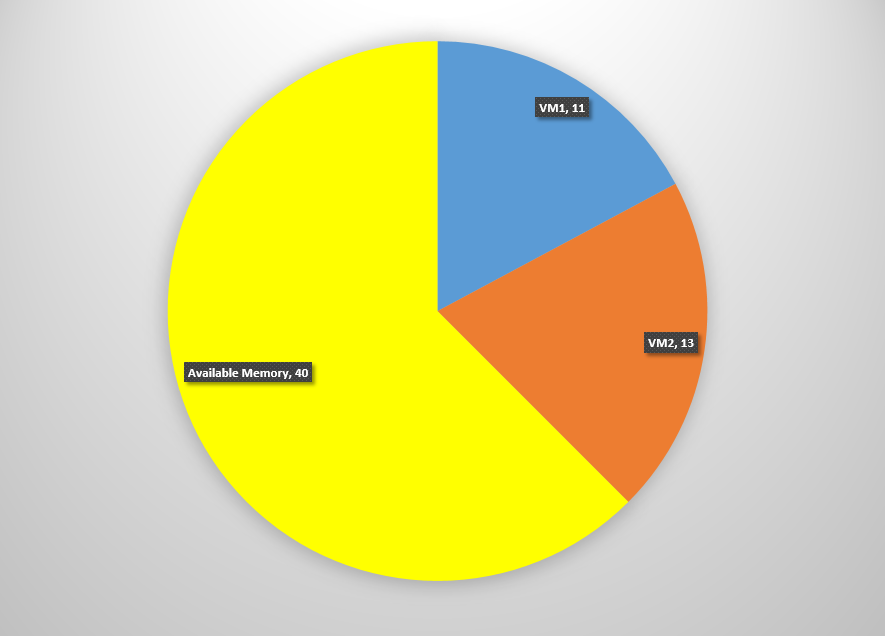
Example:64 GB of RAM available on a host
VM1: 11 GB Reservation
VM2: 13 GB Reservation
Remaining: 40 GB for all other VMs

Carving out resources with Reservations

Remember that the reservation is separate from the RAM assignment of the VM. For Example, VM1 might have an assignment of 15 GB of Memory but is Reserved 11 GB. Therefore 4 GB may be allocated from VMware physical RAM or failover to swapfile capabilities. If VM2 has a 15GB assignment in addition to the 15 GB reservation then 100% of its memory is guaranteed to be allocated from physical RAM.
Memory Reservation
CPU Reservation

Shares:

A Share are a proportional weighted assignment of memory or CPU processing power. Shares are relative resource assignment measured by a number of shares of Memory or CPU. Think of it like shares of stock in a company. The more shares there are, the less yours are worth in voting power.
Administrators will assign top tier applications (e.g.: Database Server) more shares than lower tier applications (e.g.: FTP Server) When do shares become relevant? When you OVER-ALLOCATE resources and must balance requests for resources among several VMs.

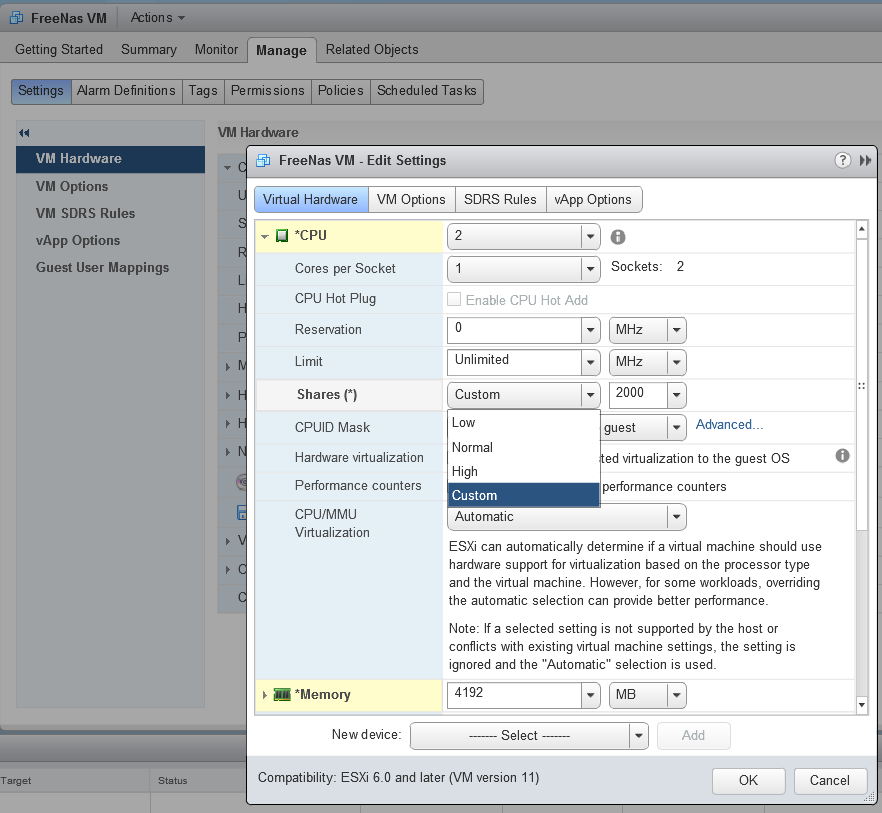
There are 4 share settings-
  • High = 2000 shares per vCPU and/or 20 shares per MB of configured memory
  • Normal = 1000 shares per vCPU and/or 10 shares per MB of configured memory
  • Low = 500 shares per vCPU and/or 5 shares per MB of configured memory
  • Custom = configure the numeric allocation of shares for CPU or memory
CPU Share configuration
Memory Share Configuration

If there is no contention for available resources, Shares don't matter. For example, if there is a single shared core with 9Ghz available and each system needs 2Ghz - there's no issue. But when there is competition for resources Shares become very important. In that same single core 9Ghz host where both systems want 100% processor utilization there will have to be a division of processing labor.

If both VMs have the evely distributed default share assignment of 1000, the two systems will have 50%/50% access to the vCPU.

CPU allocation under contention will be equal between VM1 and VM2

However, if VM1 has a is normal (1000) allocation but VM2 and another has a custom allocation of 3000 shares then when under contention VM1 will have 1000/4000 (25%) access to the resources and the other VM has 3000/4000 (75%) access to the processor.

CPU allocation under contention is now tipped to give VM2 more CPU cycles

Limits:

Limits are a way to prevent a VM from using available memory or CPU. It should only be used in testing and development, since it is designed to cripple a VM's performance.
CPU Limit


Resource Pools:

Resource Pools allow you to create a shared container that defines the Reservations, Shares, and Limits that apply to the group of all VMs within it. This is NOT an inheritance setting, but a (as the name implies) pool of defined resource allocation for the benefit of all who are within it.

For example, if a regular reservation is like carving out an office on an unpartitioned floor of a building, a Resource Pool allocation lets you carve out an office that will be shared by more than one employee.

Example:
Example:64 GB of RAM available on a host
VM1: 11 GB Reservation
VM2: 13 GB Reservation
Resource Pool (parallel to top level VMs) : 20 GB Reservation
Remaining: 20 GB for all other VMs

Reservations with Resource Pool


How about if we use Resource pools in conjunction with Shares? The proportion of resources are allocated among the top tier items, whether they are VMs or Resource Pools. Then within a resource pool you provide the means of allocating the portions within.

This would look something like this:
Shares with Resource Pools

Example:
Two resource Pools are built, each with two VMs. Share allocations are as follows:

  • RP1: 1000
    • VM1: 1000
    • VM2: 3000
  • RP2: 3000
    • VM3: 1000
    • VM4: 3000

So what percentage of CPU resources when the system is under stress would be allocated to the VMs?
  • RP1: 1000 (25% of overall CPU)
    • VM1: 1000 (25% of the 25%)
    • VM2: 3000 (75% of the 25%)
  • RP2: 3000 (75% of overall CPU)
    • VM3: 1000 (50% of the 75%)
    • VM4: 1000 (50% of the 75%)
That means that if 10Ghz were available, then
  • RP1: 2.5 Ghz (25% of CPU)
    • VM1: .625 Ghz (25% of the 25%)
    • VM2: 1.875 Ghz (75% of the 25%)
  • RP2: 7.5 Ghz (75% of overall CPU)
    • VM3: 3.75 Ghz (50% of the 75%)
    • VM4: 3.75 Ghz (50% of the 75%)
Notice that VM4 which has a share allocation of only 1000 ends up with more CPU cycles than VM2 which has a share allocation of 3000! Why? Because VM4 is in a prioritized resource pool.

Just to throw another twist for you, you can nest Resource Pools - though practically you shouldn't more than a few layers deep. The principle stays the same - Your reservations will create carved out absolute allocations, your shares will load balance contended-for resources within that container relative to others, and limits will define the maximum amount of resources available.

Let me know if you have any questions. Hope this helps!