Showing posts with label SQL. Show all posts

Monday, November 23, 2015

Building a SharePoint, SQL and Exchange Lab: Logfiles Tip

I work with a lot of lab or development scenarios. These situations are usually a fast buildup and a quick teardown with little connective tissue or infrastructure.However some of these environments may last a while, and when they do, they can start to trigger "DISK SPRAWL" (que dramatic music)

Here's the deal, both Microsoft Exchange and Microsoft SQL Server have log files that are used to ensure the integrity of their databases in case of disk failure or power outage. As a safety check, these logs are not cleared until they have been backed up. So backup of these log files enables them to be overwritten. Conversely, however, NOT performing log file backups on these servers (say in a lab or development environment) means that they grow... and grow... and grow... sometimes to terabytes in size!

Two solutions:
1) Perform backups as if you were in a production environment

2) Disable the safety check so that your lab/dev/test environment doesn't preserve the log files past the point in which data from memory is written to disk.

Here's how to do the latter for both Exchange and SQL

Exchange: Enable Circular Log Files on the Exchange Mailbox Database


1) Open Internet Explorer and Browse to the Exchange 2013 ECP URL (usually http://servername/ecp/
2) Log in with an administrative account.


3) Select "Servers" from the Lefthand Navigation bar
4) Select "Databases" from the Contextual Horizontal Navigation Bar
5) Select the database you want to enable Circular logging for and click the “Edit” pencil


6) Click on "Maintenance "
7) Click on "Enable circular logging"
8) Click on "save "
 

9) Click OK to the warning message that appears


10) Select the database and click the elipses (...) in the menu bar and choose "Dismount"


11) Click on "Yes"

12) Select the database and click the elipses (...) in the menu bar and choose Mount"
13) Click on "Yes"

And now you've enabled circular logging in Exchange.  That was the easy one.

SQL: Enabling Simple Recovery Mode in your databases

For more information on SQL's Transaction Log and the Simple Recovery mode check out these other articles:
Preventing Transaction Log Fires
My SQL Transaction Log is huge - should I switch to simple recovery mode?

1) Open the SQL Server Management Studio
 
 
2) Log into your SQL instance with sysadmin credentials
 
 
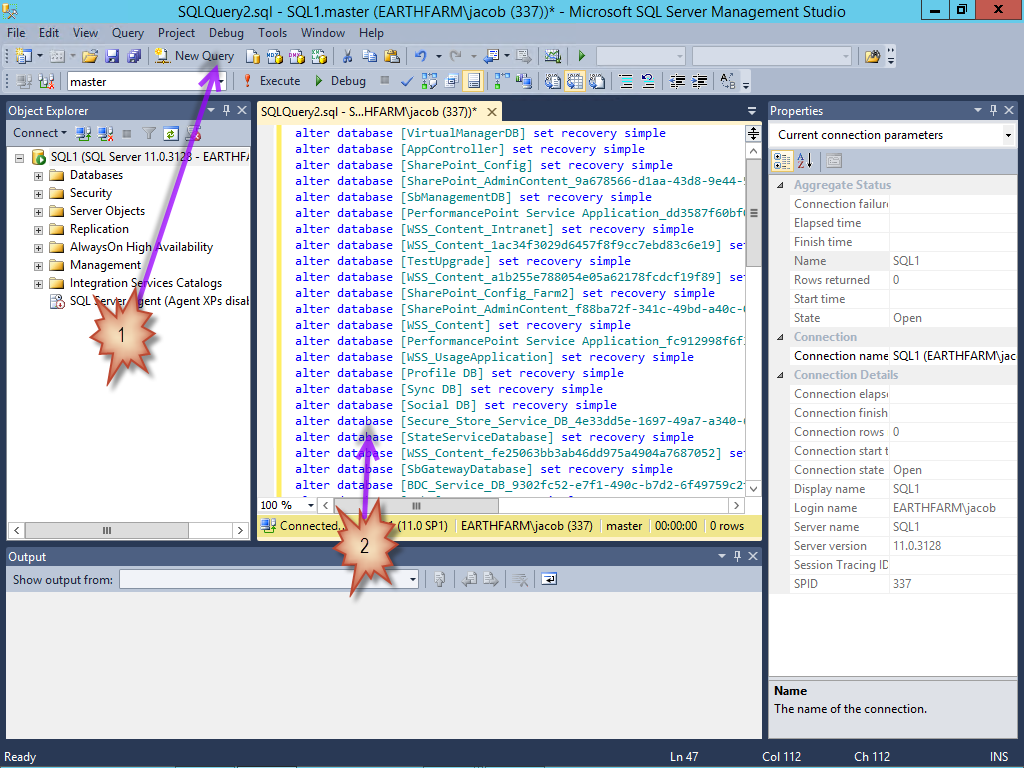
3) In the toolbar click "New Query"
 

4) You could now either open up the properties of the master database and each user database, go to the options section, and choose "simple" from the drop down menu for Recovery Mode or...

Copy and Paste the following script into the SQL Server Management Window

Use Master
alter database [model] set recovery simpleselect 'alter database ['+name+'] set recovery simple' from master.sys.databases where database_id > 4 and state_desc = 'online' 
select 'use ['+name+'] checkpoint' from master.sys.databases where database_id > 4 and state_desc = 'online'
select 'DBCC Shrinkdatabase (['+name+'], 0) ' from master.sys.databases where database_id > 4 and state_desc = 'online'
select 'DBCC Shrinkdatabase (['+name+'], 0, TRUNCATEONLY) ' from master.sys.databases where database_id > 4 and state_desc = 'online'


5) Click Execute -

NOTE: If you perform these actions BEFORE installing SharePoint then you are done!
Already installed SharePoint? Keep going! -

6) Right Click in the first results area below the script code and select "Select All"
7) Right Click in the first results area below the script code and select "Copy"


8) Click New Query
9) Paste the selected text into the query script window
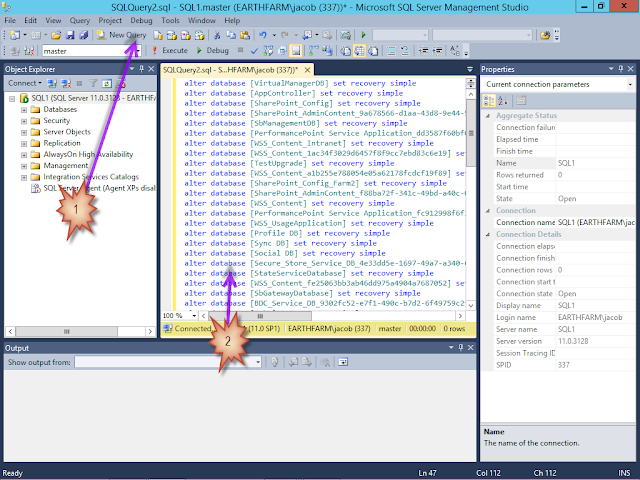

10) Click Execute
11) Verify the commands completed successfully


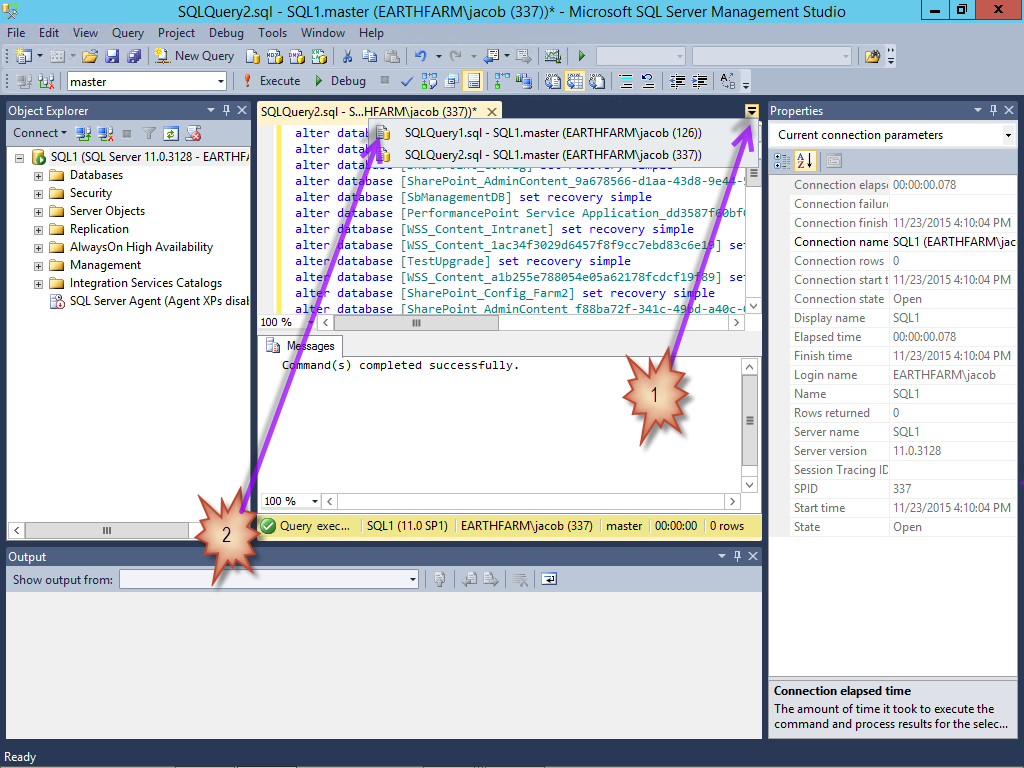
12) Click the script file select drop down
13) Choose the first script file

14) Scroll down to the Second result block
15) Repeat steps 6-13 for the Second result block


16) Scroll down to the Third result block
17) Repeat steps 6-13 for the Third result block

18) Scroll down to the Fourth result block
19) Repeat steps 6-11 for the Fourth result block

You're done - your log files are now under control for your lab/test/dev environment!


Thursday, November 5, 2015

vCenter and VCSA database choices and Host and VM support in vCenter 6.0

It can get confusing trying to track down how many hosts and VMs can be hosted with a vCenter Server or vCenter Server Appliance based upon the choice of database model that I want to work with.

vCenter Server


embedded 5.5 vCenter - vPostgres (prior versions used SQL Express) - 5 Hosts and 50 VMs
embedded 6.0 vCenter - vPostgres - 20 Hosts and 200 VMs
external vCenter- Microsoft SQL - 1,000 Hosts and 10,000 VMs

vCenter Server Appliance


embedded 5.5 vCSA - vPostgres - 100 Hosts and 3,000 VMs
embedded 6.0 vCSA - vPostgres  - 1,000 Hosts and 10,000 VMs
external vCenter - ORACLE - 1,000 Hosts and 10,000 VMs (primarily for bringing in an existing database with content)

So... the vCSA now allows full size support and now supports Linked Mode, plus you avoid paying Windows License or MS SQL Licenses and the whole Windows Security attack vector.

If you are using the VCS and you would like to move to the VCSA you have two options:
Rebuild intelligently - really your best option
Use this fling: https://labs.vmware.com/flings/vcs-to-vcva-converter

So get to the VCSA - it's awesome!

Tuesday, June 17, 2014

My SQL Transaction Log is huge - should I switch to simple recovery mode?

BACKGROUND:
In Microsoft SQL servers you have data file(s) (the .mdf and optional .ndf files) and the log file(s) (the .ldf files)

When a transaction in SQL occurs, remember that operation occurs in memory, is noted in the t-log file, and is only occasionally written to the data files during what is called a "checkpoint" operation.

When you perform a full or differential backup, it forces a checkpoint, which means all the modified data is copied from RAM to the data file, and that operation is noted in the t-log file. The backup then copies all of the data from the data files, and copies into a blank t-log file only the transactions that happened during the backup process. The server's t-log file is NOT touched.

However, when you perform a t-log backup the entire contents of the t-log are backed up and the file is "truncated" which means that instead of adding to the end of the file, we can overwrite the contents - so the t-log file will not fill up or grow, but circle around to use the same disk space.

PROBLEM:
If you do not take t-log backups then the t-log will fill up (preventing transactions, shutting down the database) or auto-grow (filling up a hard drive, often eventually creating t-logs that are bigger than the databases they serve, since they still have every transaction since the creation of the database!!!

1) PREFERRED SOLUTION:
Take t-log backups as a part of your regularly scheduled backup process. If you do this regularly your log backups will be short and fast, and you This will give you options to recover to any point in time, to recover individual corrupted files or even 8k data pages from a data file restore, and then bring them forward to the point of the rest of the databases using t-log restores.

2) SIMPLE SOLUTION:
Switch the database from full recovery mode to simple recovery mode. In the simple recovery mode the database will truncate the log every time there is a checkpoint of data from RAM to the data file.

SIMPLE SOLUTION PROBLEM:
Because the T-Log is constantly having contents deleted from it SQL will not allow for any T-Log backups to be performed, including emergency Tail-Log backups of an offline database. This means that if you did a full backup last night and three hours into today your data file is corrupted, you are only going to be able to recover to last night - you do not (by definition) have Full Database Recovery.

3) ONE ALTERNATE SOLUTION
If you have no plan for t-log backups and don't want them cluttering your backup media but want the emergency tail-log backup options available in the full recovery mode you could do the following (often with an automated job or database maintenance plan): Stay in the full recovery mode, monitor for when the t-log gets full, and when that occurs do a t-log backup, followed by a full db backup, and on success of the full backup delete the just created t-log backup.

4) ANOTHER ALTERNATE SOLUTION:
You could also  stay in the full recovery mode, perform a FULL backup, then detach the db, delete the .ldf file, and then attach the db - which will recreates the missing log file. I will sometimes use this method when cleaning up the 4GB t-log mess before returning to method #1.

Let me know if you have any questions. Hope this helps!


Friday, March 28, 2014

Preventing Transaction Log Fires

When I teach SQL Server, I often have to clear up some misconceptions about the Transaction log. Here are some of the key facets to keep in mind.
A data update (say editing the phone number of a contact) triggers a series of actions.
1) The relevant 64KB chunk of the database (called an extent)  is loaded from the hard drive into memory.
2) Once in memory, the actual data can be changed. During this time, the record is locked, so no one else can simultaneously make a different change.
3) Before the record can be unlocked, the database will record this exchange of data (called a "transaction") into the transaction log.
4) The record is unlocked IN MEMORY, and future reads and writes will be pulled from MEMORY (not the disk)
-- Notice that we have not written the "extent" back to the database file yet.
5) Later on, when enough data has been written to the database to make it worth it to SQL, the updated extents will be written back to the database file. This process is called a "checkpointing the database." This always occurs before you backup the database or if you issue the CHECKPOINT command in Transact SQL.

Why is the writing to the database delayed? Image moving from lovely Portland, Oregon to Toadsuck, Arkansas. You could load all your stuff into a moving van, and once it was full, send it on its way. Very efficient. Or... you could load your stuff into a VW Bug, send it off, and when it gets back load it with more stuff, send it, and so on. Not so efficient now! We want the "moving van" solution. The transaction log is going to act like a packing slip for this moving van.

If there should be a loss of power to the system transactions that occurred in memory are lost if they were never checkpointed... so what happens? Reports could have been written based upon that data that was NEVER WRITTEN TO THE HARD DRIVE! Never fear, transaction log is here! On bootup the system recovers all the transactions written AFTER the last checkpoint!

If you are developing an application for a customer that uses a sql database that may be unmanaged, I would always recommend setting the default recovery mode to SIMPLE, so that log files will act in a circular manner.  However, in order to be able to restore to a point in time you need to set the model to FULL. This means that the transaction log is never circular unless the log has been backed up. Only then will the log file content will be automatically overwritten. 

However, sometimes you realize, "Hey! My log file is 26 Gigabytes! Now what?" Here are two methods to quickly grab your space back that the transaction log has been using.

First, stop the transaction log file (.ldf) from growing by setting the database mode to simple before going any further.
  1. Open Enterprise manager
  2. Right click on the database,
  3. Choose properties,
  4. Select Options,
  5. Set model to simple,
  6. Click OK.
Now you need to shrinking the transaction log file (.ldf). This only works if you have free entries in the log file that are available to overwrite. You accomplish this by (a) setting the recovery model to simple (see previous steps) or (b) backing up the transaction log.
  1. Open the Enterprise manager
  2. Right click on the database,
  3. Choose All tasks,
  4. Choose Shrink database,
  5. Choose Files,
  6. Select the transaction log file,
  7. Click OK.
Optionally, you can now set the database back to the FULL recovery mode if you want to have full transaction log recovery capabilities.

OR the complete super-shrink with an Offline Detach
  1. Always take a full backup before a detach.
  2. Open Enterprise manager
  3. Right click on the database, All tasks, Detach database, OK.
  4. Delete the transaction log file.
  5. Right click on databases, All tasks, Attach database, Select the .mdf file, OK, Yes (to the create new log message).
 

Protect your Tables with SQL Schemabinding


Imagine that you have created a standard view on a set of tables. What would happen if you deleted a column of the underlying table (altering the view’s “schema”)?

I'll tell you what happened to me... the next time when I ran my view, it failed, because it was be missing needed columns!

Here is when SCHEMABINDING comes to the rescue. Creating a view WITH SCHEMABINDING locks the underlying tables and prevents any changes that may change the table schema!
Here is an example of a view with SCHEMABINDING option:

USE AdventureWorks
GO
CREATE VIEW dbo.vEmployeeList
With SCHEMABINDING
As
Select EmployeeID, ([FirstName] + ' ' + [LastName]) as FullName
FROM HumanResources.Employee
INNER JOIN Person.Contact
on
Person.Contact.ContactID = HumanResources.Employee.ContactID
GO
You have now effectively prevented the use of the ALTER or DROP statement on the HR.Employees table.
Or have you?

If you try and drop the column

Use AdventureWorks
GO
ALTER TABLE Person.Contact DROP COLUMN LastName
GO

this will be your message:

"The object vEmployeeList' is dependent on column 'FirstName'.
ALTER TABLE DROP COLUMN FirstName failed because one or more objects access this column.
(Microsoft SQL Server, Error: 5074)"
On the other hand, if you attempt to remove a field in the table editor of the GUI studio you will be presented with this message:
" - Warning: The following schema-bound objects will be modified:
- View 'dbo.vEmployeeList': schema binding will be removed."
Be Careful!!!!
If you click "yes" your removal of the field in the table will succeed and your view will now be defunct!

SCHEMABINDING! Good luck gang!